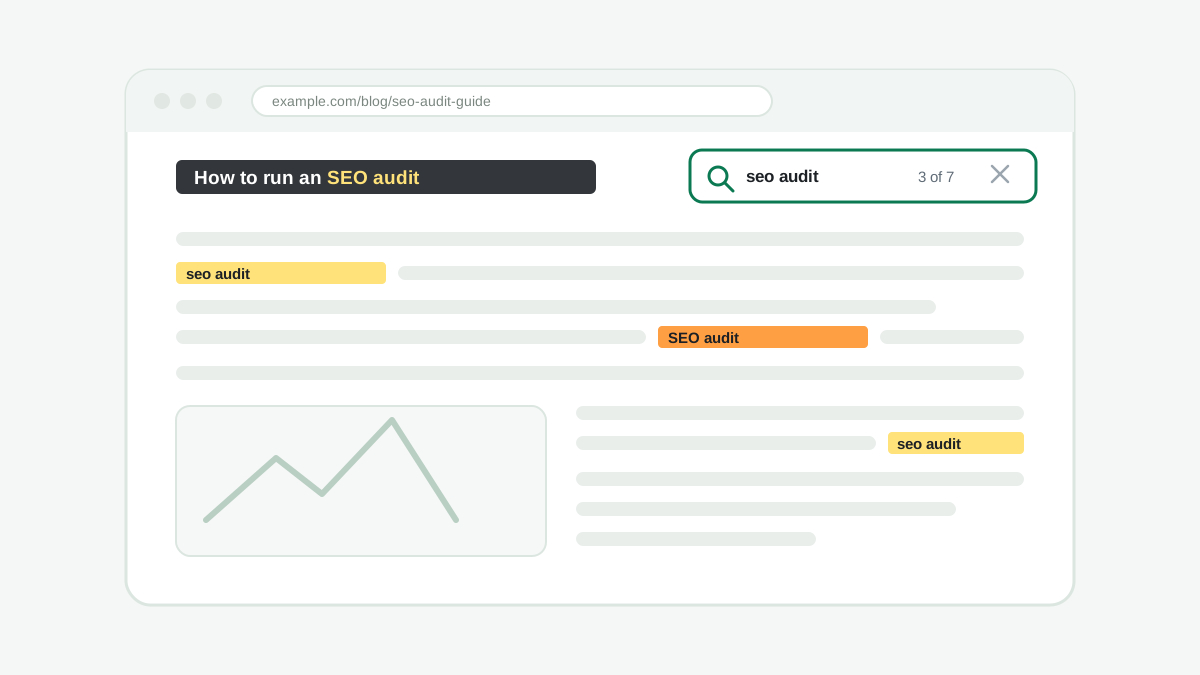
To search a web page for a keyword, press Ctrl+F on Windows or Command+F on a Mac, type the word, and your browser highlights every match. That works for visible text. To see whether a keyword appears where search engines look most, such as the title tag, meta description, headings and image alt text, you need to check the page source or use an SEO tool. This guide covers both, on desktop and mobile.
Quick answer: Ctrl+F (Windows) or Command+F (Mac) finds words in the visible text. Ctrl+U (Windows) or Option+Command+U (Mac) opens the page source, where you can search hidden places like the title tag. The free SEO Wins site audit checks nine keyword placements for you at once.
1. Use Find in page on a computer
Every desktop browser has a built-in search for the page you are viewing. It is the fastest way to confirm that a word or phrase is on the page and to jump between each mention.
| Browser | Windows | Mac |
|---|---|---|
| Chrome | Ctrl+F | Command+F |
| Edge | Ctrl+F | Command+F |
| Firefox | Ctrl+F | Command+F |
| Safari | – | Command+F |
Type your keyword in the box that appears. The browser shows how many matches it found, such as "3 of 12", and highlights each one. Press Enter to move to the next match and Shift+Enter to go back. Searches are not case-sensitive, so "SEO audit" also finds "seo audit".
2. Search a page on a phone
Mobile browsers hide the same feature in their menus:
- Chrome on Android or iPhone: tap the three-dot menu, then Find in page, and type your word.
- Safari on iPhone: tap the Share button and choose Find on Page. You can also type the word into the address bar and pick the On This Page result at the bottom of the list.
- Samsung Internet: open the menu and choose Find on page.
3. Search the page source for hidden keywords
Find in page only searches text you can see. Some of the most important places for a keyword are invisible on the page itself: the title tag shown in search results, the meta description, image alt text and structured data. To check them, open the page source and search it the same way.
- Chrome, Edge and Firefox on Windows: press Ctrl+U, then Ctrl+F.
- Chrome on Mac: press Option+Command+U, then Command+F.
- Safari on Mac: turn on the Develop menu in Settings → Advanced, then press Option+Command+U.
Search for <title>, name="description" and alt= to jump to those tags and read whether your keyword is there. You can also paste any address into the Page Source viewer to see the raw HTML with line numbers and a search box. That works on phones too, and it shows exactly what a crawler receives from the server.
4. Check keyword placement with an SEO tool
When the goal is SEO rather than just finding a word, the question is not only whether the keyword appears but where. A word repeated in a footer helps far less than the same word in the title and main heading. Paste the page into the site audit and enter your target keyword. The Keyword tab checks nine places at once:
- The title tag, and whether the keyword is near the start.
- The H1 main heading.
- The meta description.
- The URL.
- The first 100 words of the content.
- H2 and H3 subheadings.
- Image alt text.
- Keyword density, flagging both no mentions and overuse.
- The Open Graph title used when the page is shared.
Each check passes, warns or fails, with a note on what to change. It also matches keywords as whole phrases, so a search for "seo audit" is not fooled by "seo auditor".
5. Find which pages on a site mention a keyword
Sometimes the question is the other way around: which page on a website covers a topic? Search Google for site:example.com "your keyword", using the domain you want to check and quotation marks around the phrase. Google lists pages from that site that contain it. The results are a sample rather than a complete list, but they are good for spotting existing content before writing something new.
For your own site, Google Search Console is more reliable. Open the Performance report, filter by query, and switch to the Pages tab to see which URLs already appear for that search. If two pages compete for the same keyword, the keyword mapping guide explains how to give each search one clear page.
Why a keyword might not be found
- Different wording. The page may use a plural, a synonym or a hyphen ("e-mail" instead of "email"). Search for the shortest core word, such as "audit" rather than "audits".
- Text inside images. Words in pictures, logos and infographics are not text, so Find cannot match them. Search engines also struggle to read them, which is a reason to put key information in real text.
- Content that loads later. Some pages load sections with JavaScript after you scroll or click. If Find misses text you can see, compare with the page source: content missing from the HTML may also be missed by AI crawlers that do not run JavaScript.
- Collapsed sections. Text inside closed tabs or accordions may not be searched until you open them, depending on the browser.
How many times should a keyword appear?
There is no ideal number. Google's guidance is to write for people, and repeating a phrase unnaturally can make a page read badly and look like keyword stuffing. Use the main keyword where it naturally fits: the title, the main heading, early in the text and in a subheading or two. Then cover the topic thoroughly with related words, examples and answers to the questions people ask. The keyword analysis tool helps group those related phrases before you write.
Ready to check a page? Run a free SEO audit with a target keyword, or read the SEO keyword analysis workflow to choose the right keyword first.